
In this tutorial we will see how we can use in-built Push Buttons on the ARIES IoT v2.0 board.
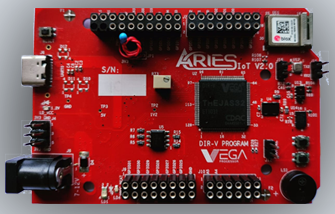
Aries IoT v2.0 Board
The ARIES IoT is a fully indigenous and a “Made in India” product to get started with basic microprocessor programming and embedded systems. This board is built upon a RISC-V ISA compliant VEGA Processor with easy-to-use hardware and software. For more details about ARIES IoT boards please refer to the ARIES development boards and Ecosystem.
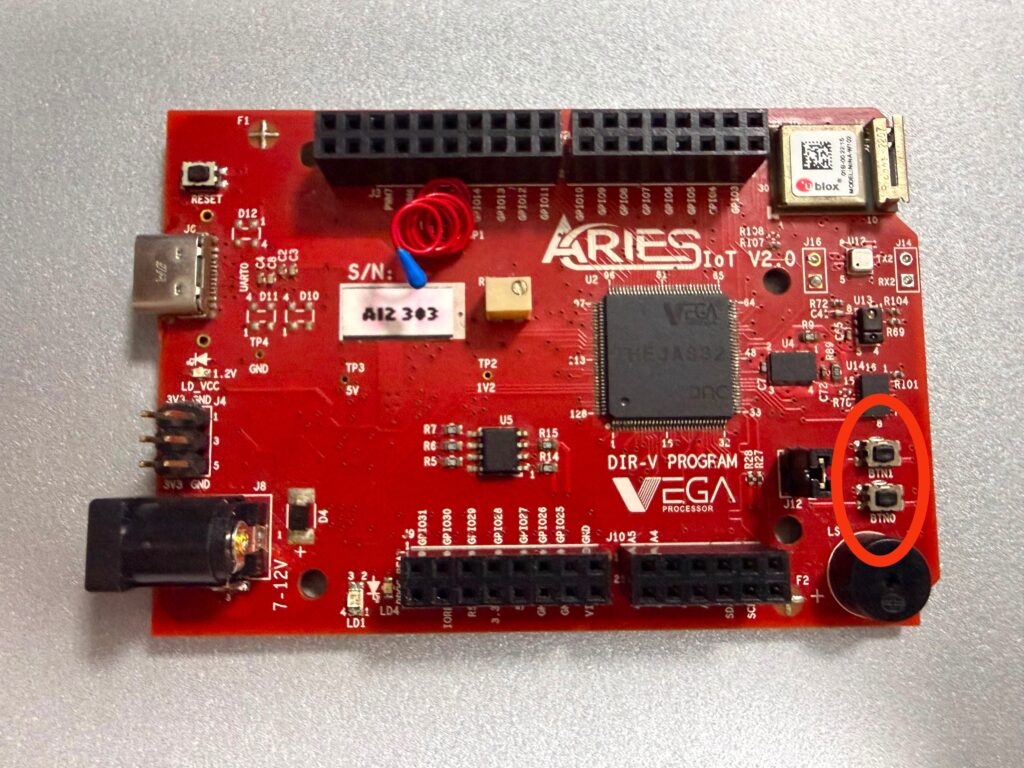
Push Button
Push buttons are normally-open tactile switches that provide a digital input when pressed. When a button is pressed, the circuit is completed and the corresponding GPIO input changes state. Once released, the input returns to its default state. Push buttons allow us to power the circuit or make any particular connection only when we press the button. Simply, it makes the circuit connected when pressed and breaks when released.These buttons are useful for user interaction and event-driven applications.
Prerequisites
- Windows 10 or above/Ubuntu 20.04 LTS or above
- Arduino IDE
- VEGA ARIES Board support package
Components Required
- ARIES IoT v2.0 Board
- USB type C cable
Circuit Diagram
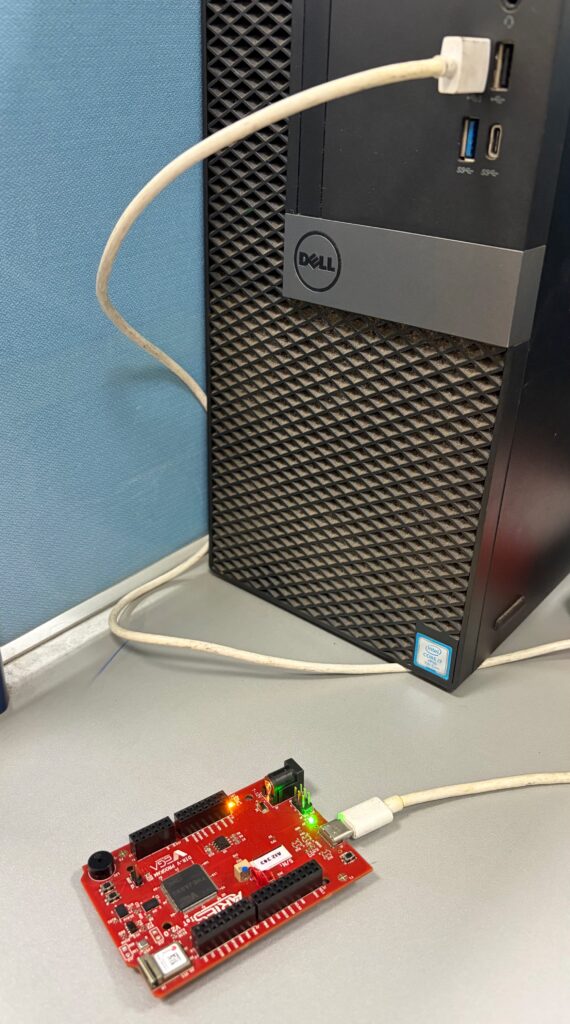
No external connections required to test this code. You can directly connect Aries IoT board through USB and upload the program.
Procedure
Setup VEGA Ecosystem
Download and install Arduino IDE 2.3.10
Once installed Open Arduino IDE
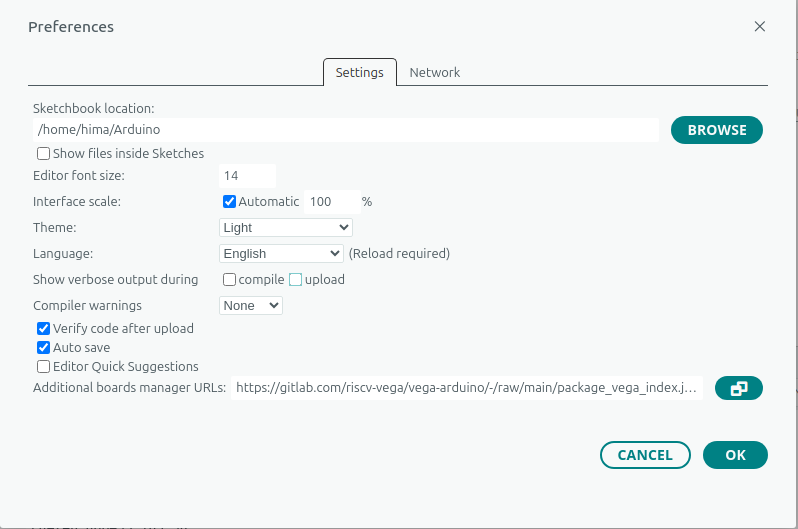
Open File->Preferences, Add below JSON in “Additional Boards Manager URL”, Press OK
https://gitlab.com/riscv-vega/vega-arduino/-/raw/main/package_vega_index.json
Open Tools->Boards->Board manager, Search for “vega”
Install “VEGA ARIES Boards” with latest version
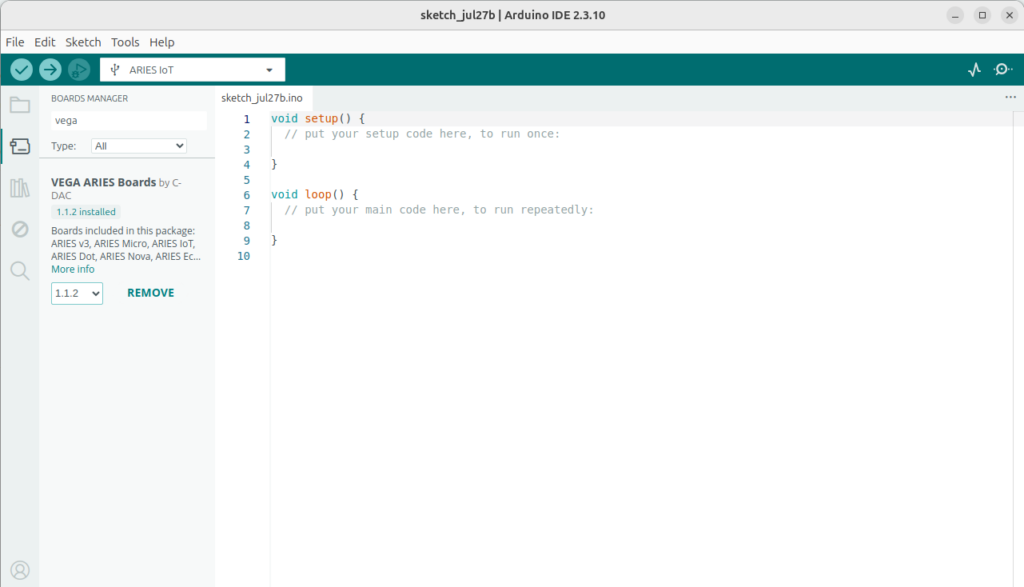
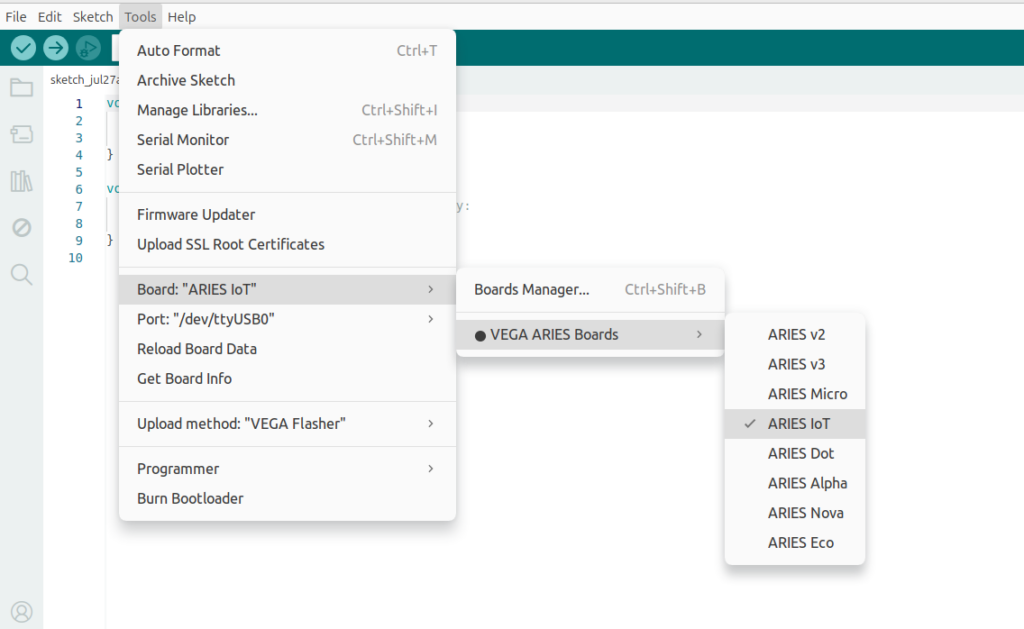
Select ARIES IoT Board from Tools -> Board -> VEGA Processor: ARIES Boards -> ARIES IoT
Check your ARIES board whether the BOOT SEL pin is shorted using a jumper or not.
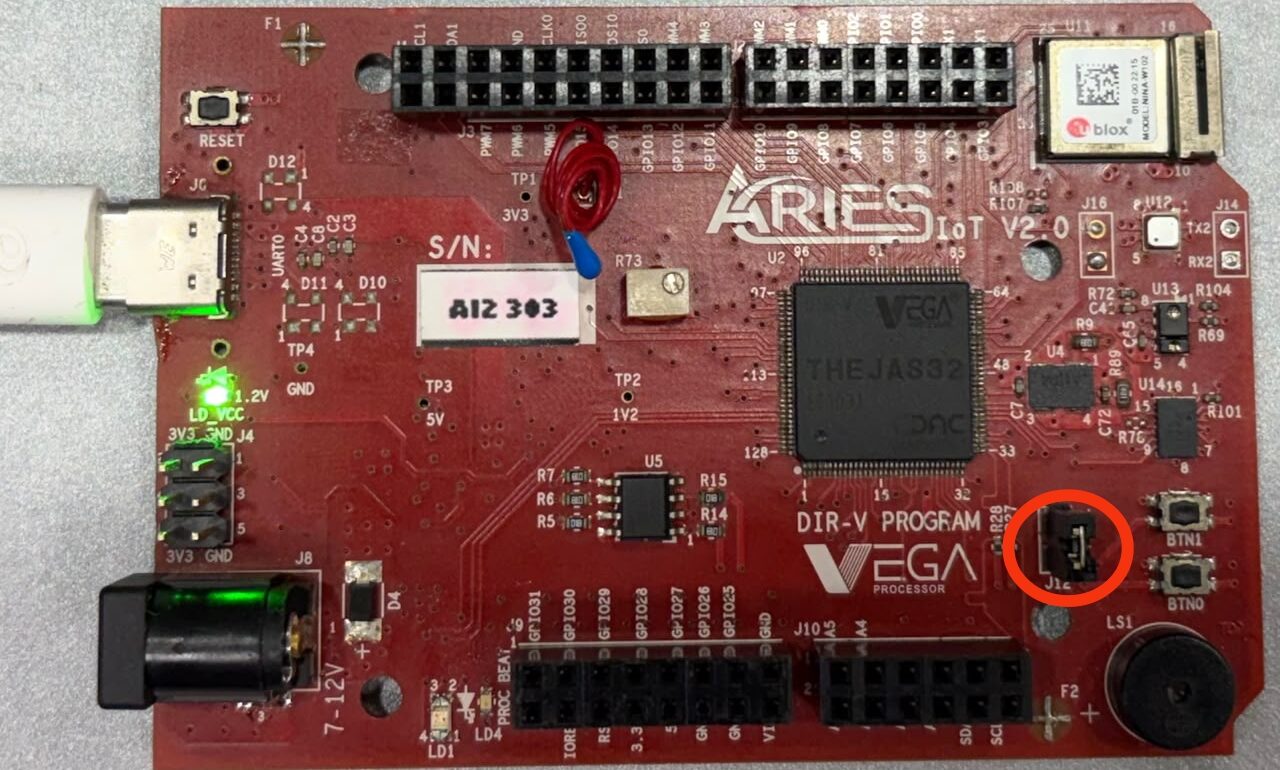
If
BOOT-SEL jumper (J12) is shorted :
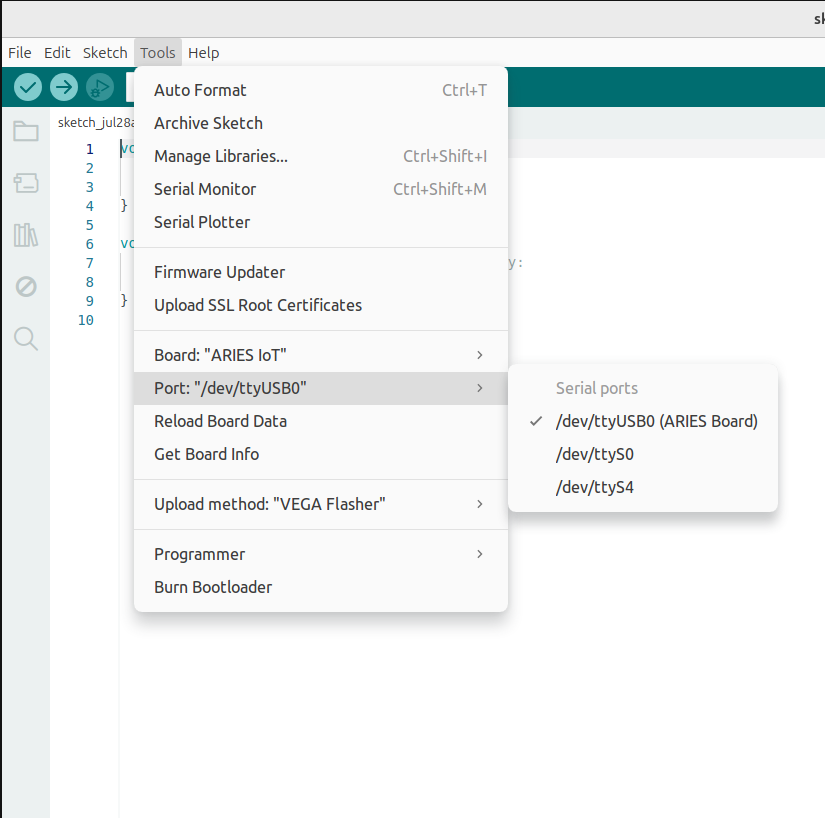
Select Tools -> Upload method -> VEGA FLASHER
Else
Select Tools -> Upload method -> VEGA XMODEM
Here the BOOT SEL pin is shorted, so we have selected VEGA FLASHER from Upload method
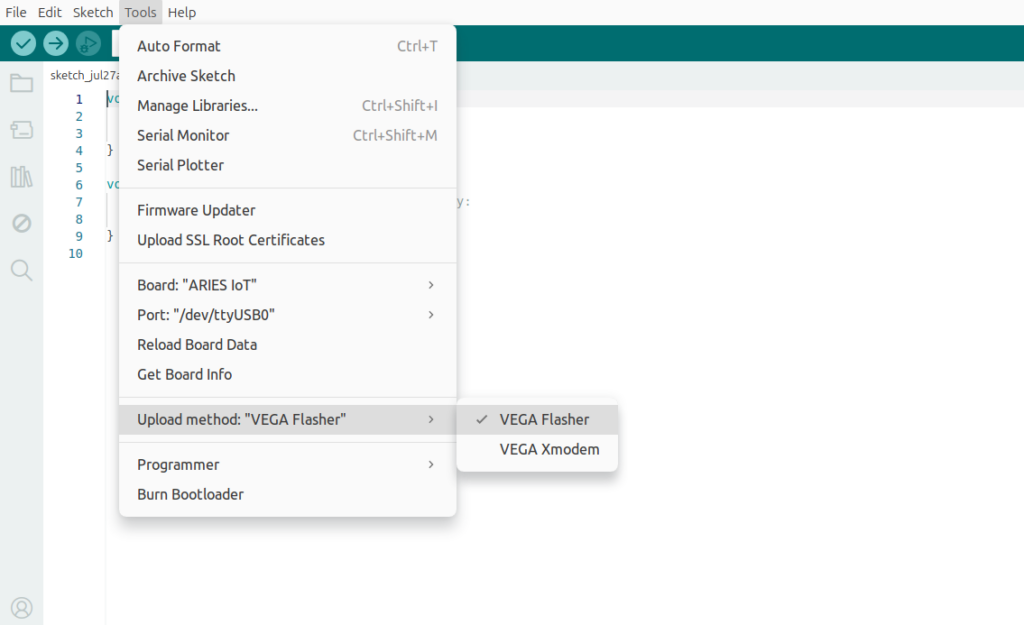
Also select appropriate port from Tools -> Port -> COM* (ARIES Board) for windows and dev/tty/USB*(Aries Board) for ubuntu
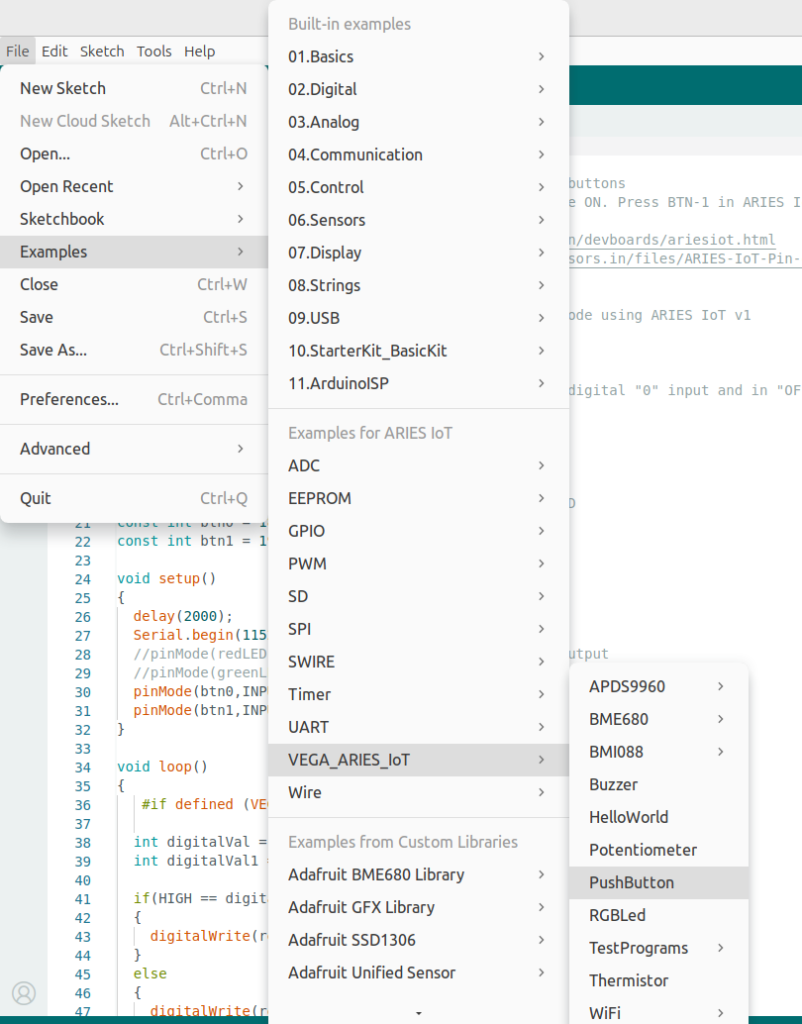
Now, Open Files -> Examples -Under Examples for ARIES IoT -> VEGA_ARIES_IoT -> Push Button
Finally Upload the code to ARIES IoT board
Output
After successfully uploading the code to the ARIES IoT board and opening the Serial Monitor at 115200 baud,the onboard push buttons are continuously monitored. When BTN0 is pressed, the Green LED turns ON, and when the button is released, the LED turns OFF. Similarly, pressing BTN1 turns ON the Red LED, and releasing the button turns it OFF.