
In this tutorial we will see how to connect the RGB LED with ARIES IoT v2.0 Board. The RGB LED can emit different colors by mixing the 3 basic colors red, green and blue.
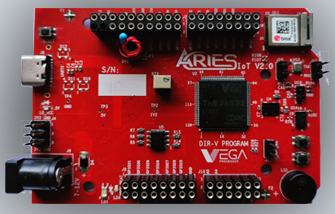
Aries IoT v2.0 Board
The ARIES IoT is a fully indigenous and a “Made in India” product to get started with basic microprocessor programming and embedded systems. This board is built upon a RISC-V ISA compliant VEGA Processor with easy-to-use hardware and software. For more details about ARIES IoT boards please refer to the ARIES development boards and Ecosystem.
RGB LED
The VEGA ARIES IoT Board features an onboard RGB LED that can emit Red, Green, and Blue colors individually or in combination to produce multiple color outputs. The RGB LED is connected directly to the microcontroller, allowing users to control each color channel through software without any external wiring. It is useful for status indication, notifications, debugging, and learning PWM-based color mixing in embedded and IoT applications. On the ARIES IoT Board, the RGB LED pins are Red (GPIO24), Green (GPIO22), and Blue (GPIO23), and the LEDs are active-low, meaning a LOW signal turns the corresponding LED ON.
Prerequisites
- Windows 10 or above/Ubuntu 20.04 LTS or above
- Arduino IDE
- VEGA ARIES Board support package
Components Required
- ARIES IoT v2.0 Board
- USB type C cable
Circuit Diagram
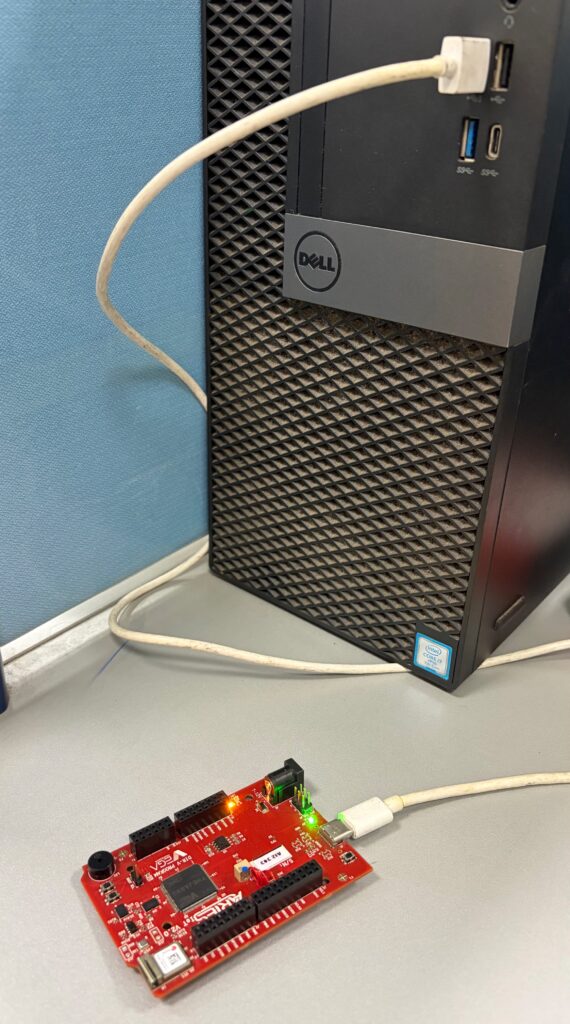
No external connections required to test this code. You can directly connect Aries IoT board through USB and upload the program.
Procedure
Setup VEGA Ecosystem
Download and install Arduino IDE 2.3.10
Once installed Open Arduino IDE
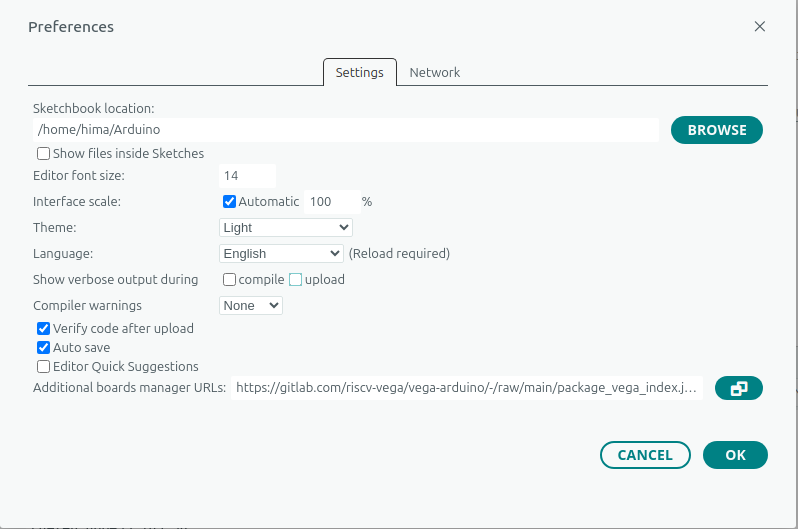
Open File->Preferences, Add below JSON in “Additional Boards Manager URL”, Press OK
https://gitlab.com/riscv-vega/vega-arduino/-/raw/main/package_vega_index.json
Open Tools->Boards->Board manager, Search for “vega”
Install “VEGA ARIES Boards” with latest version
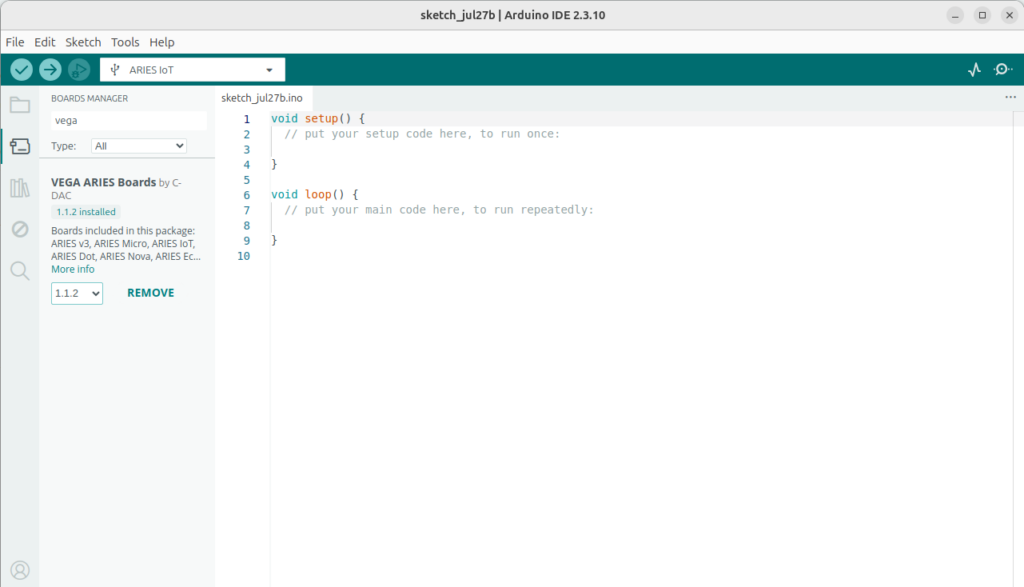
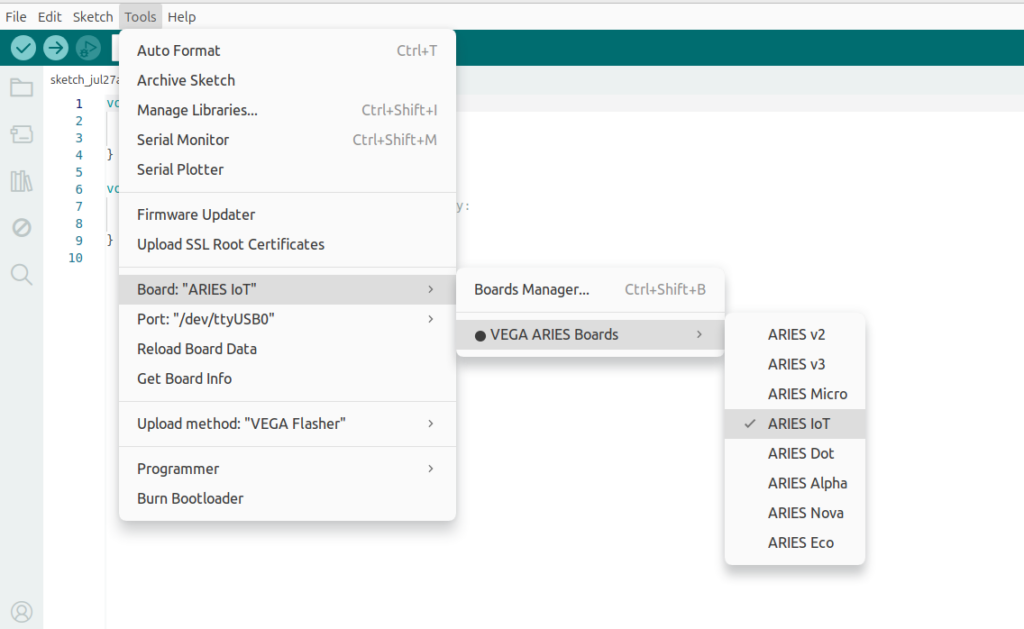
Select ARIES IoT Board from Tools -> Board -> VEGA Processor: ARIES Boards -> ARIES IoT
Check your ARIES board whether the BOOT SEL pin is shorted using a jumper or not
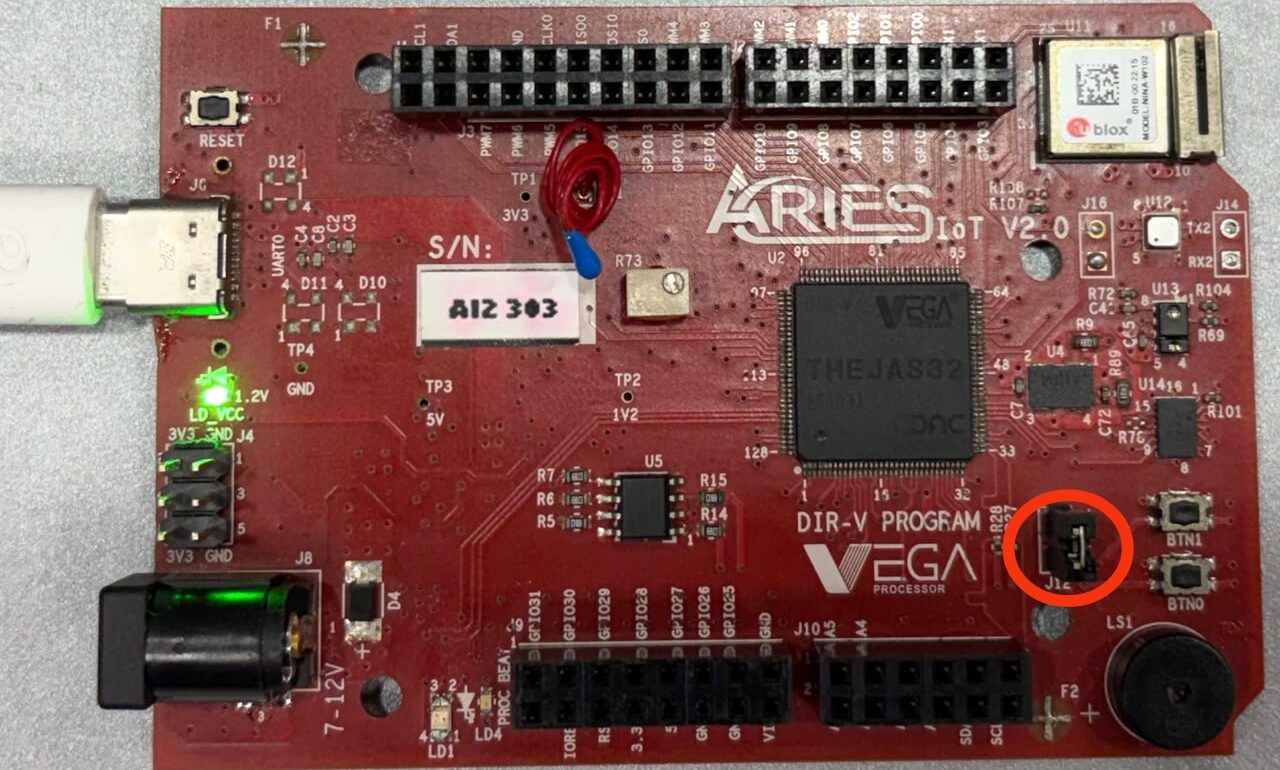
If
BOOT-SEL jumper (J12) is shorted :
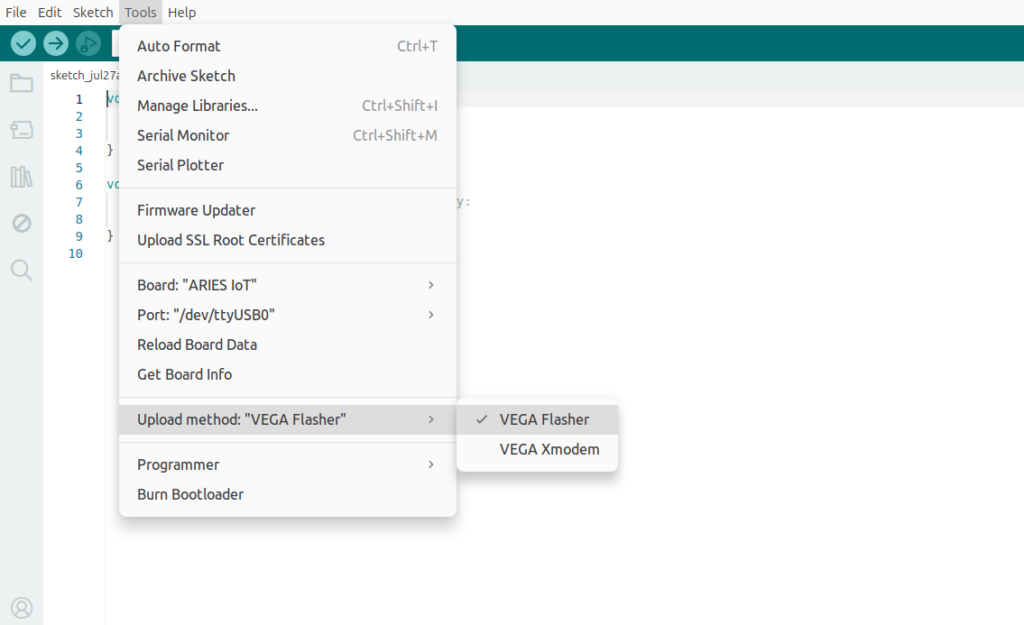
Select Tools -> Upload method -> VEGA FLASHER
Else
Select Tools -> Upload method -> VEGA XMODEM
Here the BOOT SEL pin is shorted, so we have selected VEGA FLASHER from Upload method
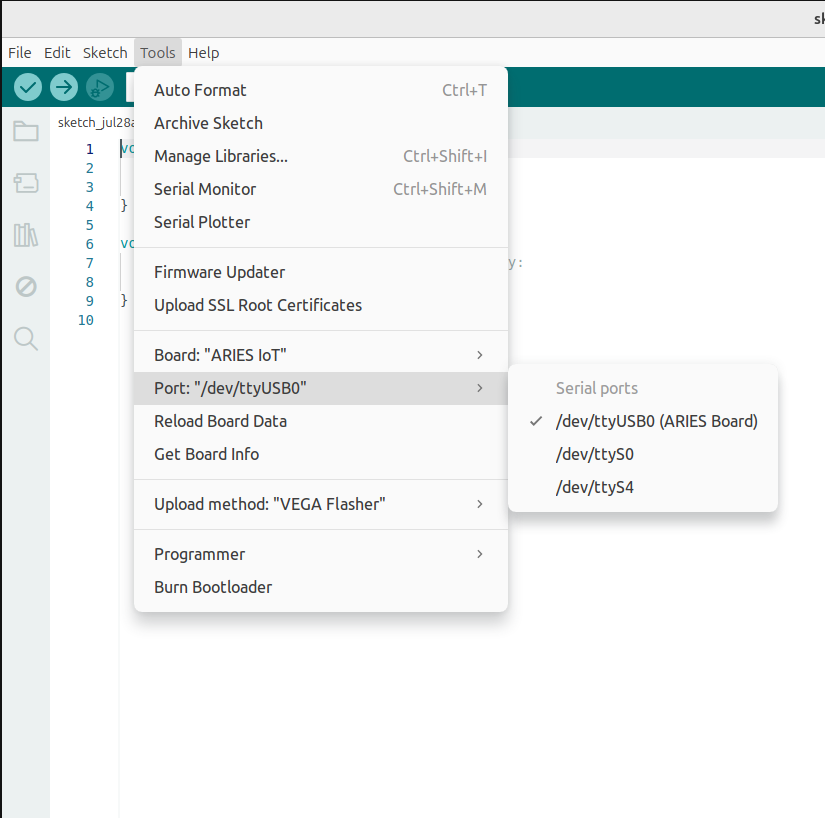
Also select appropriate port from Tools -> Port -> COM* (ARIES Board) for windows and dev/tty/USB*(Aries Board) for ubuntu
Now, Open Files -> Examples -Under Examples for ARIES IoT -> VEGA_ARIES_IoT -> RGBLed
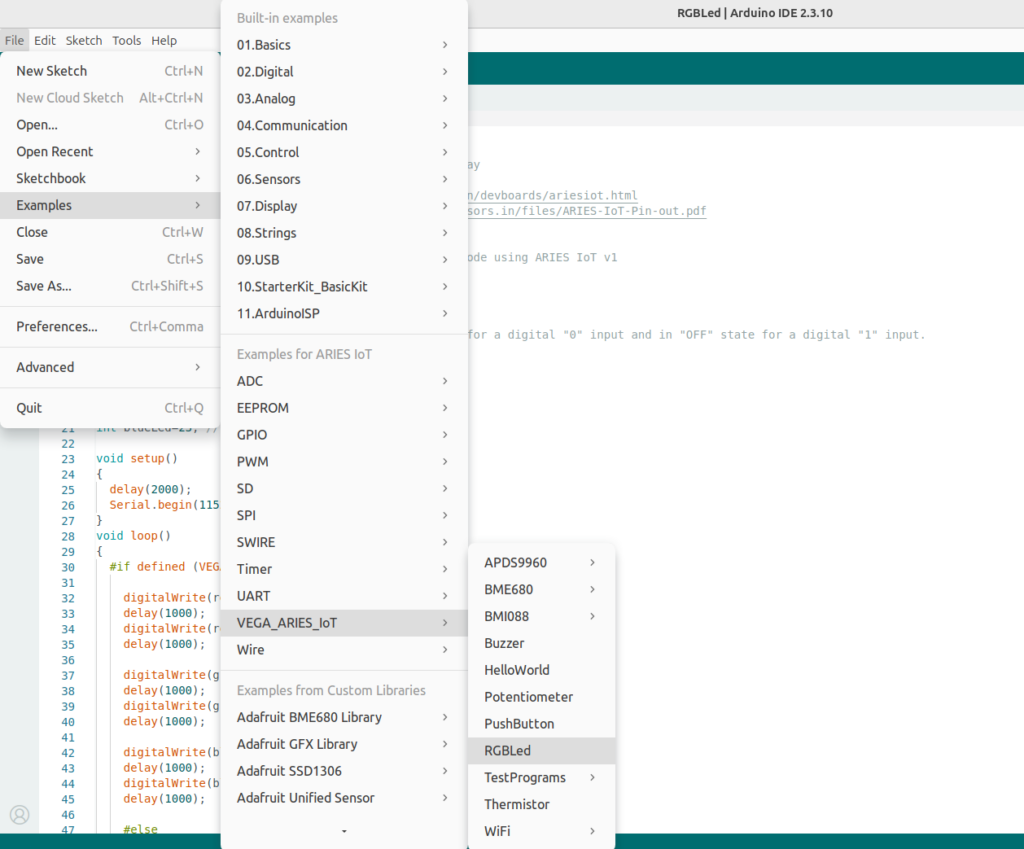
Finally Upload the code to ARIES IoT board
Output
Once the code is uploaded, you can see the RGB LED working as expected by producing different colours