
This tutorial demonstrates the use of Bluetooth-based LED control available on the VEGA ARIES IoT Board. The onboard green LED can be controlled wirelessly through a Bluetooth-enabled mobile application,eliminating the need for any external hardware connections.
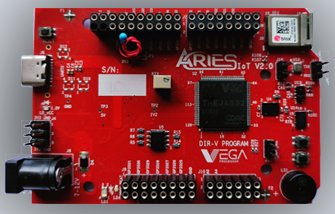
Aries IoT v2.0 Board
The ARIES IoT is a fully indigenous and a “Made in India” product to get started with basic microprocessor programming and embedded systems. This board is built upon a RISC-V ISA compliant VEGA Processor with easy-to-use hardware and software. For more details about ARIES IoT boards please refer to the ARIES development boards and Ecosystem.
Prerequisites
- Windows 10 or above/Ubuntu 20.04 LTS or above
- Arduino IDE
- VEGA BSP (version 1.0.9)
- nRF Connect for Mobile (Android)
Components Required
- ARIES IoT v2.0 Board
- USB type C Cable
Circuit Diagram
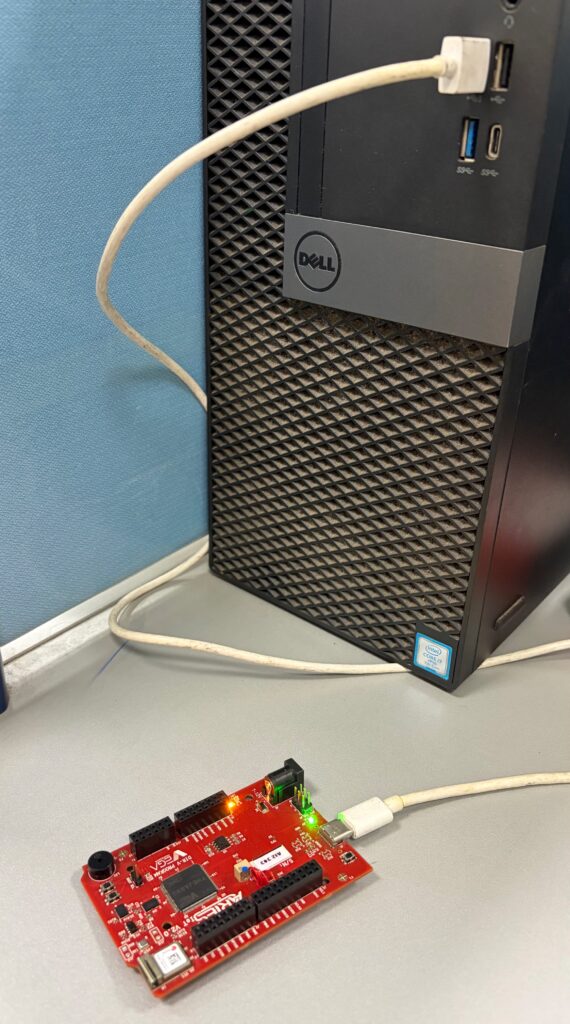
No external connections required to test this code. You can directly connect Aries IoT board through USB and upload the program.
Procedure
Install the nRF Connect App
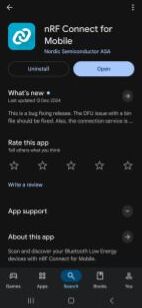
- Download and install nRF Connect for Mobile from the Google Play Store on your Android device.
Install the VEGA BSP
- Follow these steps to install the latest VEGA board package:
- Open Arduino IDE.
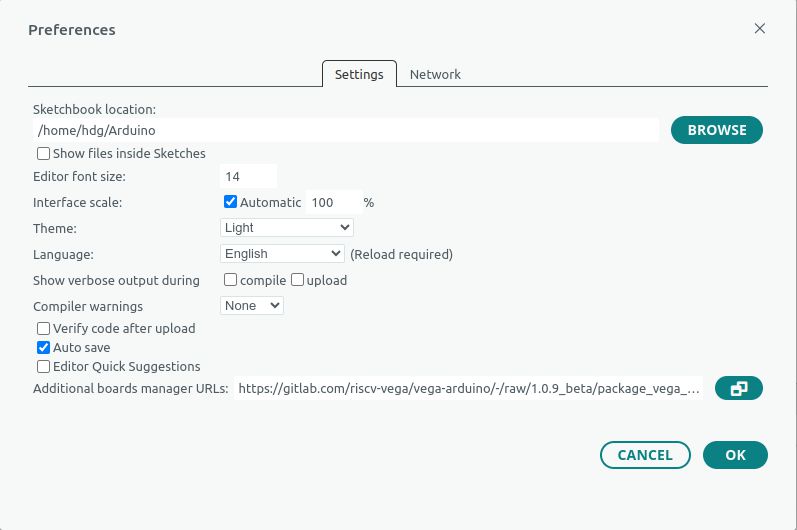
- Navigate to File → Preferences, and in Additional Boards Manager URLs, add the following link:https://gitlab.com/riscv-vega/vega-arduino/-/raw/1.0.9_beta/package_vega_index.json?ref_type=heads
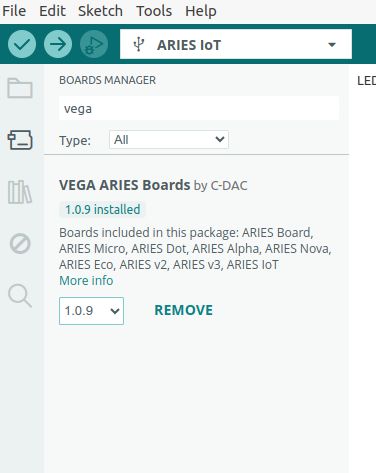
- Go to Tools → Board → Boards Manager, search for “vega”
- Install “VEGA ARIES Boards” with the version (1.0.9)
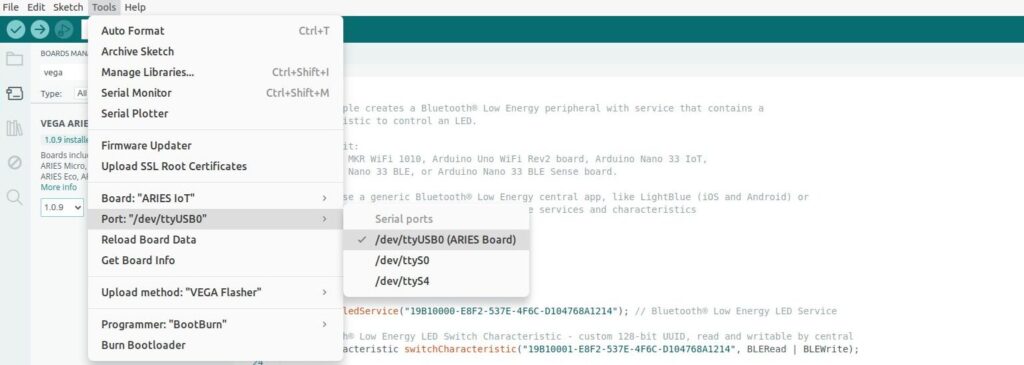
Configure the following under Tools:
- Board: VEGA Processor → ARIES Boards → ARIES IoT
- Upload Method: VEGA Flasher
- Programmer: BootBurn
Connect the ARIES IoT board to your computer.
- On Windows: Select Tools → Port → COM* (ARIES Board)
- On Linux: Select Tools → Port → /dev/ttyUSB* (ARIES Board)
Install Required Library
The project requires VEGA_ArduinoBLE (v1.0.1). Install it in one of two ways:
Option 1 – Using Arduino Library Manager:
- Open Tools → Manage Libraries.
- Search for VEGA_ArduinoBLE and install version 1.0.1.
Option 2 – Manual Installation from ZIP:
- Download the library ZIP file from: https://gitlab.com/riscv-vega/vega-sensor-libraries/communication vega_arduinoble
- In Arduino IDE, go to Sketch → Include Library → Add .ZIP Library…
- Select the downloaded ZIP file.
- Restart the IDE — the library will now appear under Sketch → Include Library.
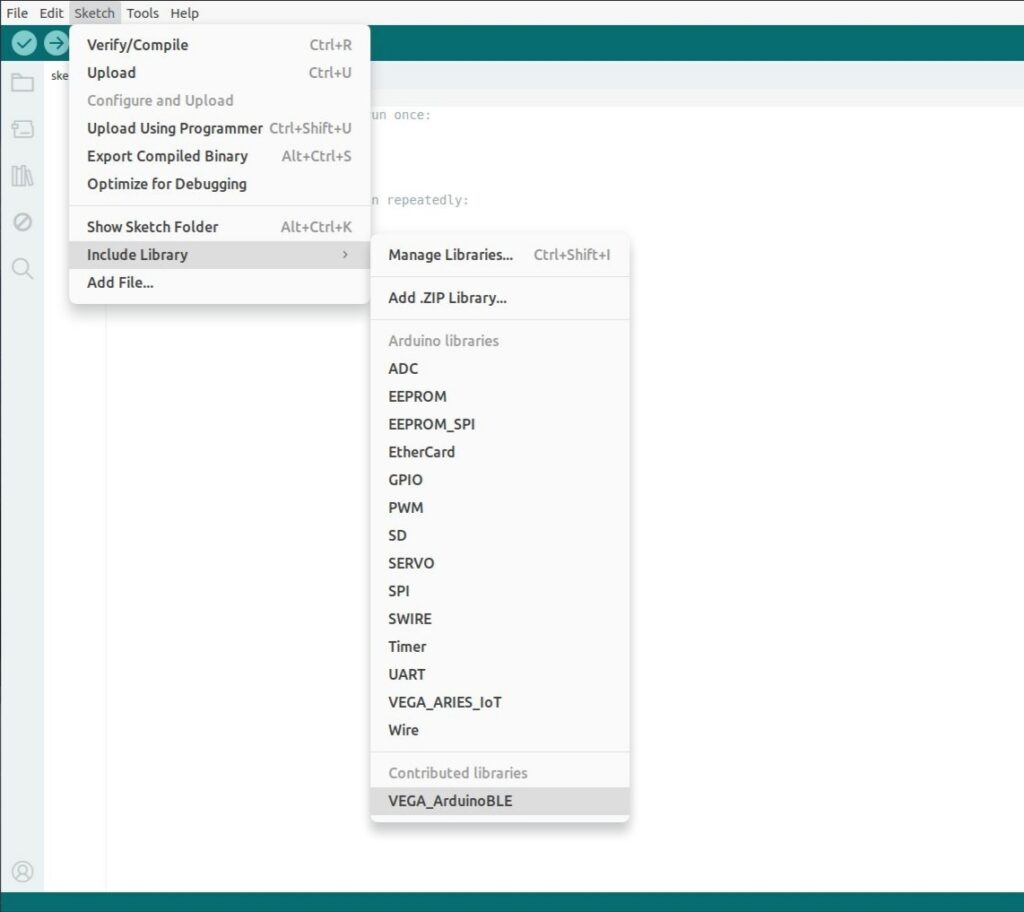
Note: Bluetooth functionality is supported only from version 1.0.1 of the VEGA_ArduinoBLE library.
Upload the Example Program
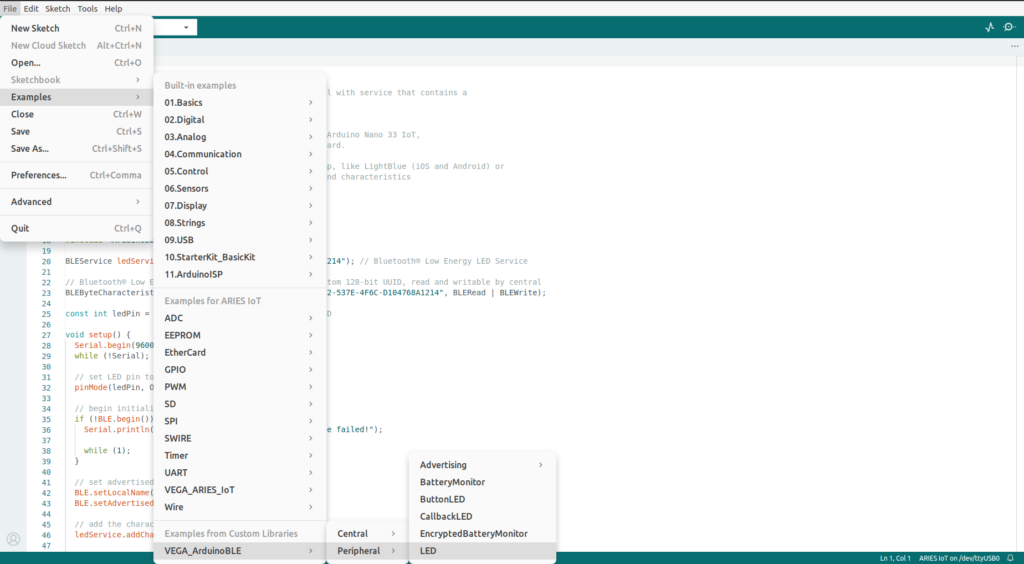
- Open File -> Examples -> VEGA_ArduinoBLE -> Peripheral -> LED
- Click Verify to compile.
- Click Upload to flash the program to your ARIES IoT board.
- Once done, open the Serial Monitor.
Connect and Control via Bluetooth
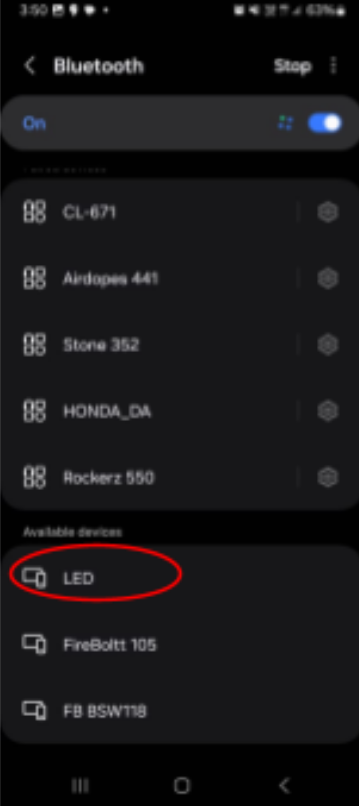
Once the code is uploaded, open the Bluetooth of your Android phone and pair the Bluetooth device with your Android phone. The Bluetooth name will be “LED”.
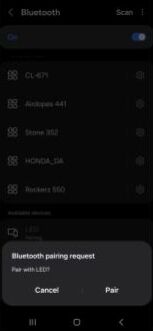
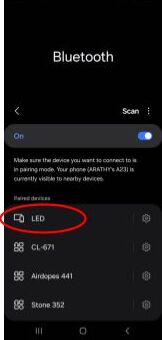
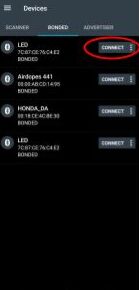
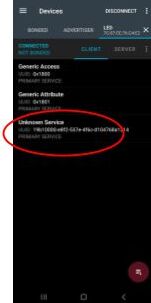
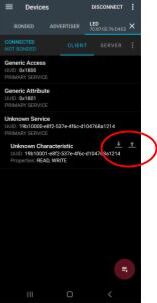
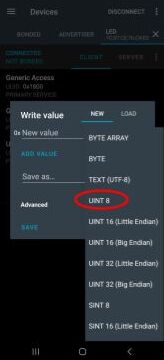
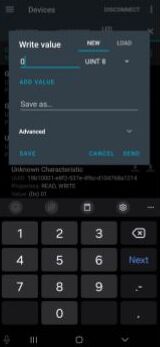
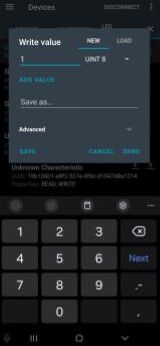
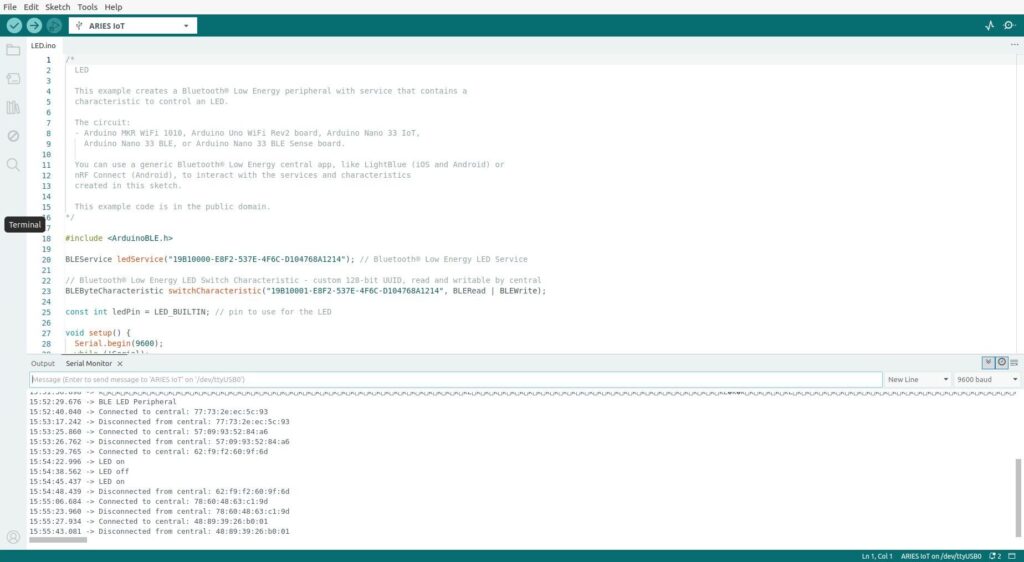
You’ll see the green LED on the ARIES board switching ON and OFF based on the values you send through the app. The Serial Monitor will also display messages indicating the LED status — showing “LED ON” and “LED OFF” whenever the state changes.
This completes the Bluetooth LED control setup for the VEGA ARIES IoT Board.